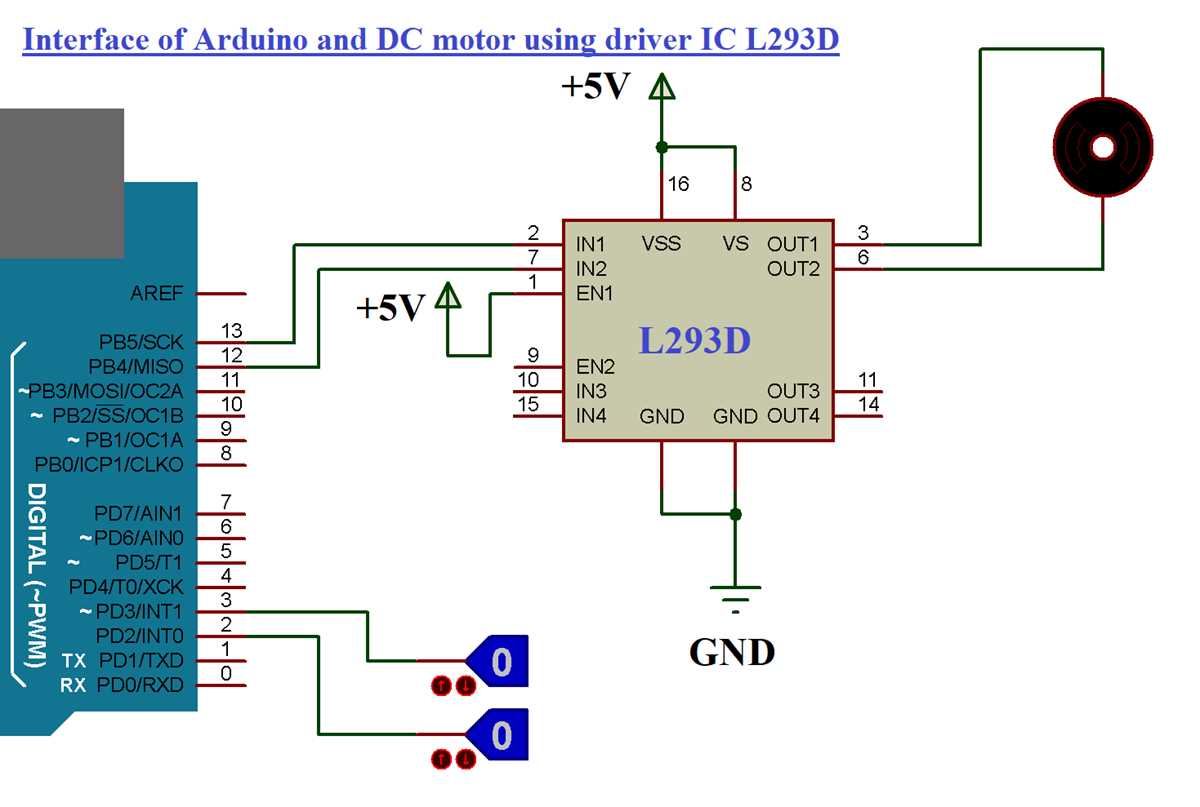
Start by organizing the components you want to connect. For a basic project like turning on an LED, gather your microcontroller, LED, resistor, and connecting wires. Place the microcontroller in the center, and begin mapping out the flow of electricity between the components. Each connection should be clearly identified to avoid errors during the setup.
Focus on drawing accurate lines to represent the connections between the pins. Ensure that all components are positioned logically, making it easier to trace the circuit later. For example, the longer leg of the LED should always connect to the positive rail, while the shorter leg goes to the ground. This simple rule helps prevent incorrect connections that could damage the components.
Use color coding for different types of connections, such as red for power and black for ground. This will make your setup clearer and save you time during troubleshooting. When working with more complex projects, consider using software to design and simulate the connections before physically assembling the parts.
Lastly, double-check your connections with a multimeter before powering up the system. This ensures there are no short circuits or mistakes that could affect your project’s functionality. Testing at each stage of the build will save you time and effort in the long run.
How to Draw an Arduino Circuit Diagram for a Simple LED Project
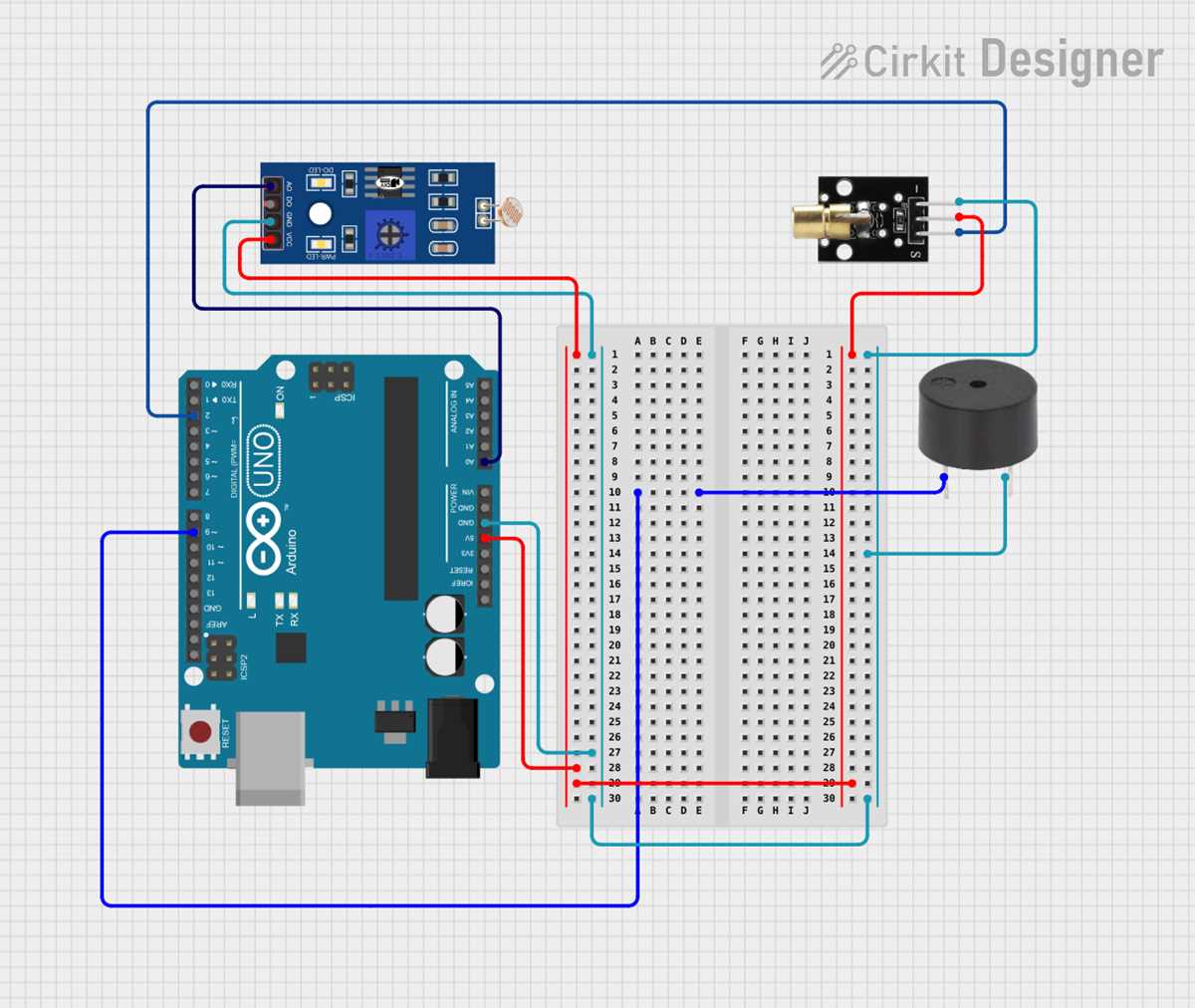
To start, gather the necessary components: an LED, a current-limiting resistor (typically 220Ω or 330Ω), and a microcontroller. The LED needs to be connected in series with the resistor to avoid damage. Begin by positioning the microcontroller in the center of your workspace.
Next, place the LED close to the microcontroller, aligning the longer leg of the LED (the anode) to the positive rail. The shorter leg (the cathode) will connect to the negative side, which is typically represented by the ground pin of the microcontroller.
Use a resistor between the positive terminal of the LED and the microcontroller’s output pin. The resistor is crucial for limiting the current flowing through the LED, ensuring it doesn’t burn out. Label the resistor clearly and ensure the correct orientation for current flow.
Now, draw the connections. Start by linking the microcontroller’s output pin to one side of the resistor, and the other side of the resistor to the anode of the LED. This shows the path of electricity flowing from the controller to the LED through the resistor.
For the negative side of the setup, connect the cathode of the LED directly to the ground pin of the microcontroller. Make sure to label the ground pin and ensure that it’s visually distinct from the other connections in your plan.
To finalize, verify all connections. The positive side of the LED should always go through the resistor before reaching the microcontroller’s output pin, and the negative side should go directly to ground. This will ensure proper current limiting and functionality.
After completing the drawing, test your setup by simulating the design in a software tool, if available. This helps catch any mistakes before building the physical setup and guarantees that the LED will light up when the microcontroller is powered on.
Identifying Common Components in Arduino Circuit Diagrams
Start by recognizing the most common components you’ll see: the microcontroller, resistors, LEDs, capacitors, and switches. The microcontroller is the heart of any setup, usually represented by a rectangular box with labeled pins. This component sends and receives signals to control the flow of electricity throughout the project.
Resistors and LEDs
Resistors are drawn as a zigzag line and are used to limit current. You’ll commonly see them connected in series with LEDs to prevent overloading. LEDs are represented as a triangle with two arrows pointing out, indicating the direction of current flow. The longer leg of an LED represents the positive (anode), while the shorter leg represents the negative (cathode).
Capacitors and Switches
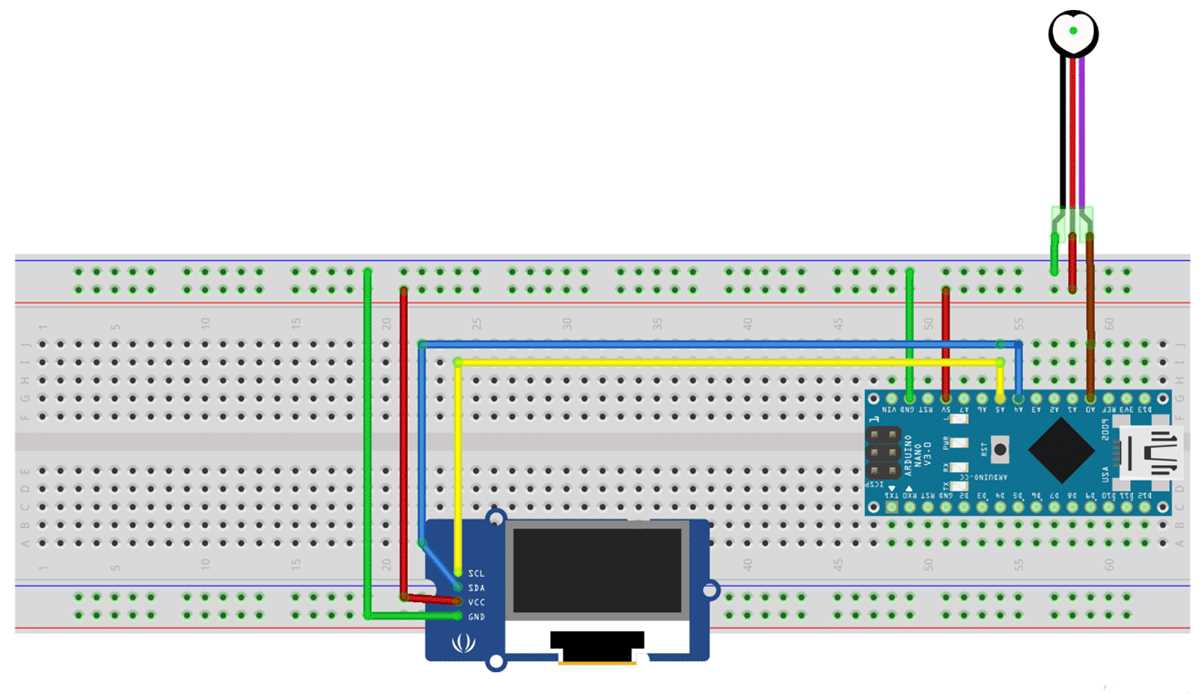
Capacitors store electrical energy and are typically shown as two parallel lines. They smooth out fluctuations in voltage and are often used in power supply setups. Switches, on the other hand, are depicted as a break in the line with an option to close or open the circuit, allowing you to control when the current flows.
By becoming familiar with these components and their symbols, you’ll be able to easily interpret and create your own setups. Each component plays a specific role in controlling the electrical flow, and understanding their functions will streamline your learning process.