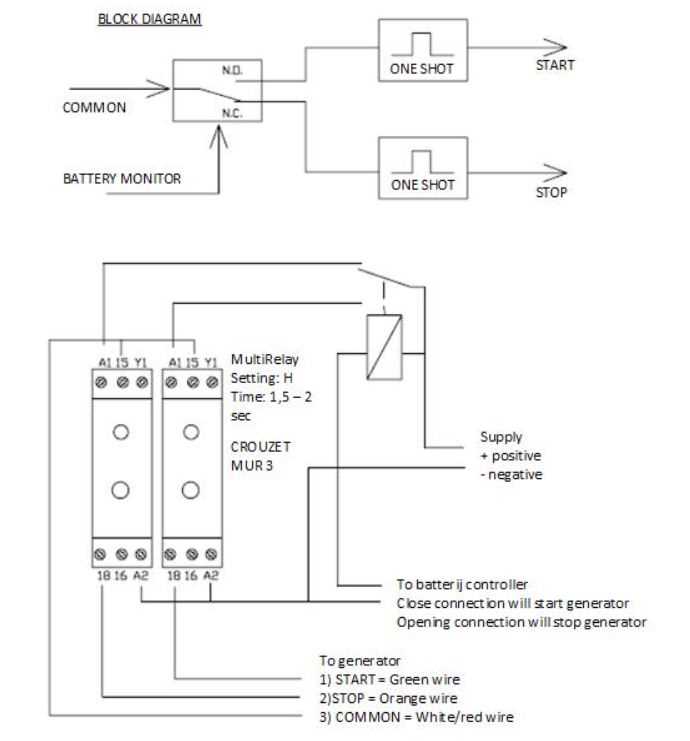
Assign each pin and color code before starting the layout to avoid misrouting signals and ensure proper power distribution. Confirm that each line matches the corresponding terminal on your device or module.
Use the online interface to place components and connect leads visually. Drag terminals to match physical connections and verify that no overlaps or crossing points could cause short circuits or interference.
Test each connection digitally before finalizing the map. Simulate voltage presence and signal flow to ensure triggers, lights, and auxiliary modules respond correctly under different conditions.
Export the completed layout in formats compatible with your system for documentation or integration into assembly guides. Include color codes, pin numbers, and notes for future troubleshooting and modifications.
Wiring Diagram Generator Guide
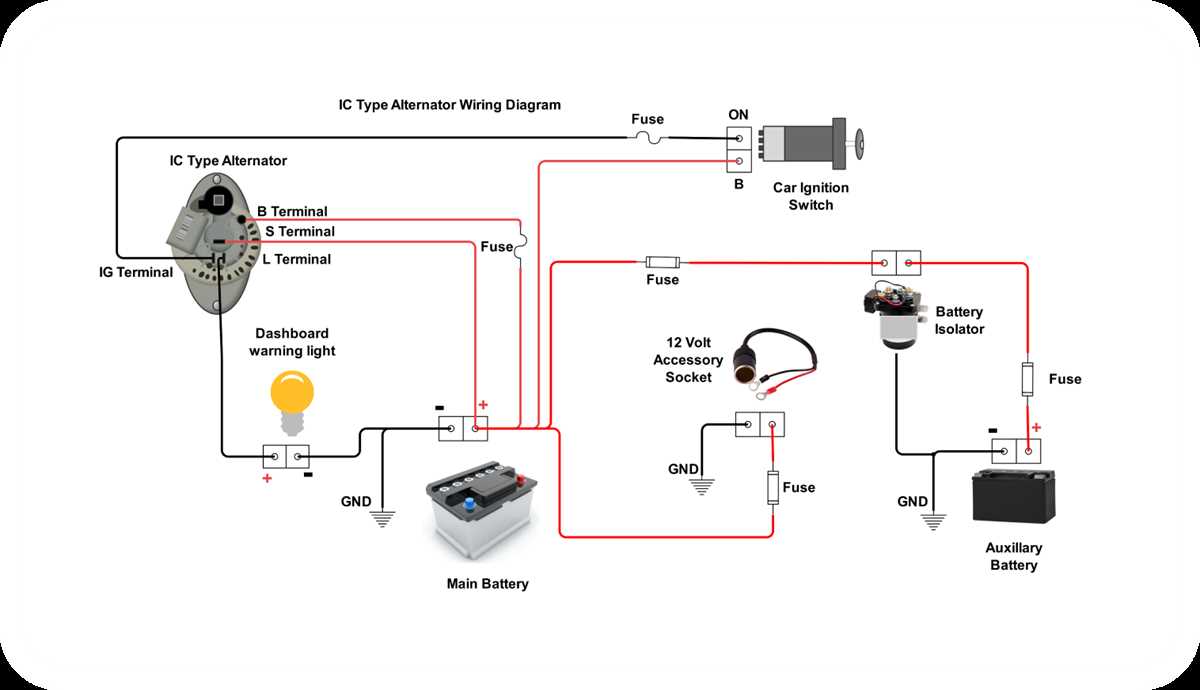
Define all pin assignments and color codes before creating the layout to prevent misrouting and signal errors. Assign each lead to the correct terminal according to device specifications and confirm compatibility with connected modules.
Use the interface to simulate connections and test signal flow. Verify voltage paths, accessory triggers, and auxiliary modules to ensure accurate operation. Export layouts with clear labels, pin numbers, and color references for future reference and troubleshooting.
Setting Up Pin Assignments and Color Codes
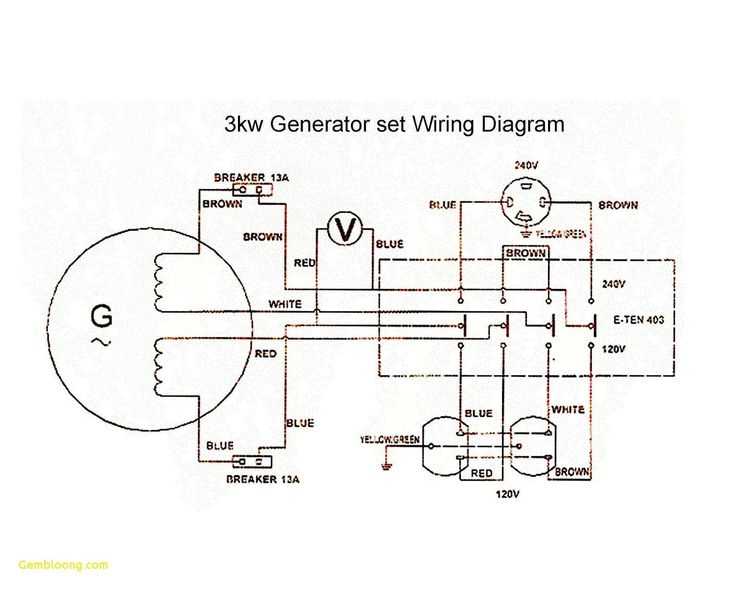
Assign each terminal before connecting leads to prevent errors in signal routing. Use the following standard color references for common functions:
- Red – constant 12-volt power
- Black – ground connection
- Yellow – switched accessory power
- Blue – auxiliary module trigger
- Orange – illumination control
- White, Gray, Green, Purple – positive outputs for speakers or devices
- White/Black, Gray/Black, Green/Black, Purple/Black – negative outputs for speakers or devices
Verify each assignment with a multimeter to ensure proper voltage and continuity. Document pin numbers and corresponding colors clearly, and group leads by function using insulated clips or ties. This setup reduces errors, prevents interference, and simplifies testing before final assembly.